

GS514 – Managing Document Routing and Output Locations in Globalization Studio
After designing a document layout using Business Document Management (BDM) or Electronic Reporting (ER), the next question is:
“Where should the document go once it’s generated?”
Should it be:
- Printed?
- Emailed to the customer?
- Stored in SharePoint or Azure?
- Submitted to a tax authority?
This article answers those questions.
You’ll learn:
- How to control document destinations
- How to route documents based on country, customer, or document type
- How routing is executed in Globalization Studio pipelines
- What is and isn’t possible when it comes to calling external services
This builds on GS506 – Pipelines and GS513 – Layouts with BDM.
📦 What Is Document Routing?
Document routing controls where documents go after they are generated. Examples:
- Send to customer via email
- Store a PDF copy in SharePoint
- Submit XML to a government platform
- Print internally
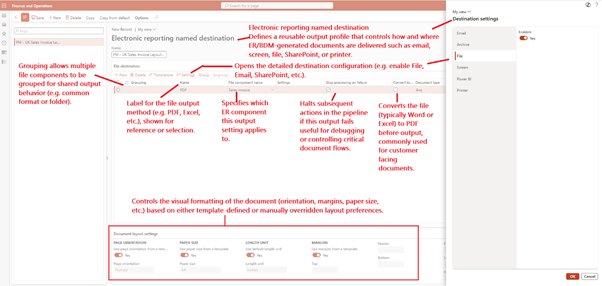
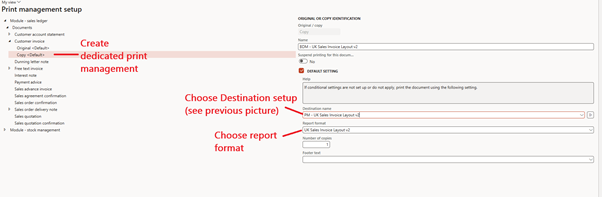
In Dynamics 365, this can be done through:
- Print Management (for static, legacy routing)
- Globalization Studio Pipelines (for conditional, multi-step routing)
🔄 Routing Options in D365
| Method | Best For |
| Print Management | Simple, fixed output (e.g., always email invoices) |
| Globalization Studio Pipelines | Country-specific or dynamic routing with multiple steps |
🧭 Example: Route Invoices by Country
Let’s say:
- In the UK, invoices must be emailed to the customer
Please refer to the following community article for a detailed, step-by-step guide on configuring email and body content ER: How to use Organization email templates when emailing configurable business documents
- In Italy, they must be submitted to the government portal (FACe)
🇬🇧 UK Route – Static
- Use BDM to design PDF invoice
- Configure Print Management:
- Destination = Email
- Use %Email% token for the recipient address
- ✅ Done – email is sent when invoice is posted
🇮🇹 Italy Route – Automated
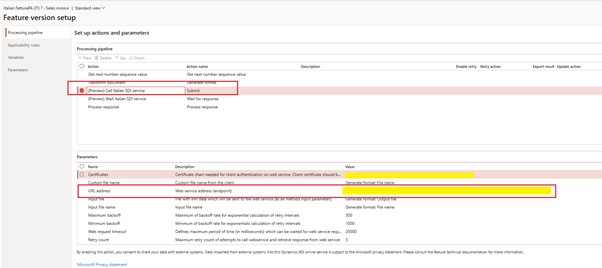
- Use Globalization Studio feature
- In the processing pipeline:
- Generate XML using ER
- Digitally sign the file
- Integrate with FACe using a hardcoded action
- Store copy in Azure Blob
This automation works because Microsoft provides a built-in action like Integrate with Edicom or Call Italian SDI service.
⚠️ Can I Call My Own Web Service?
No , not out-of-the-box.
In the current product:
- The pipeline step dropdown only shows hardcoded service actions (e.g., Call SEFAZ, Integrate with ZATCA, etc.)
- There is no generic “Submit” or “Send to web service” action available
To call a custom API/web service, you must:
- 🔧 Extend the Electronic Invoicing Add-in
- Write a custom action handler in C#
⚙️ Routing Setup in Globalization Studio
If using a pipeline:
✅ Step 1: Add a Pipeline Step
- Go to Feature > Setups > Processing Pipeline
- Add action step like:
- Generate
- Store
- Sign
- Call government service (predefined)
There’s no generic “submit/send” step, only predefined ones.
✅ Step 2: Add Applicability Rules
Add conditions to route differently per scenario:
| Rule | Action |
| Legal entity = GB01 | Store to SharePoint |
| Country = IT | Call FACe portal (via predefined action) |
| Customer group = B2G | Generate XML and sign |
| Document type = FreeTextInvoice | Route to internal finance folder |
✅ Step 3: Combine with Print Management (Optional)
Use both methods:
- Print Management for simple print/email
- Globalization Studio for complex logic, storage, and government submission
🔁 Can I Route to Multiple Places?
Yes , within one pipeline, you can:
- Generate document
- Digitally sign (optional)
- Email to customer
- Store in Azure or SharePoint
- Submit to authority (if supported)
Each step executes in order.
👀 Where to Monitor Output and Failures
Use these tools to troubleshoot:
| Tool | Purpose |
| Submission History | Track success/failure of each routing step |
| ER Execution Logs | View file contents, transformation, and errors |
| Print Management Journal | Legacy method for email/print audit trail |
💡 Tips for Output Management
| Tip | Why It Helps |
| Use Azure or SharePoint for storage | Central, secure, and scalable |
| Test email delivery using tokens | Avoid issues like “email not found” |
| Use rules for country/legal entity | Simplifies international rollout |
| Don’t rely on “Submit” for custom calls | Use Power Automate or custom extensibility |
🧭 Related Articles
- GS504 – Applicability Rules
- GS506 – Pipelines and Storage
- GS508 – ALM for Compliance Features
- GS513 – Layouts with BDM
📘 Coming Up Next
In GS515 – Digital Signatures and Key Vault Integration, we’ll explore:
- Signing invoices and files
- Connecting D365 to Azure Key Vault
- Country-specific signing requirements
📖 [Continue to GS515 →]
🔍 View Full Article in PDF
Share this content:










Post Comment