







D365FO 10.0.50 Procurement and Asset Management: What’s New in Dynamics 365 F&SCM 10.0.50 (Part 8)
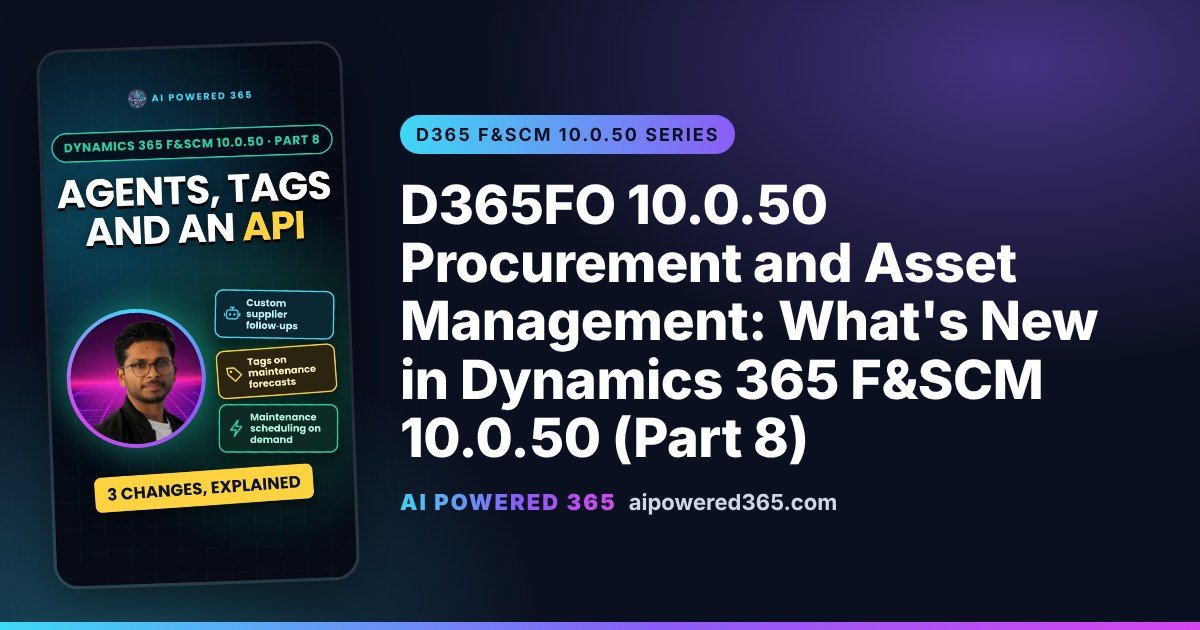
D365FO 10.0.50 Procurement and Asset Management: what’s new for Procurement and Asset Management in Dynamics 365 F&SCM 10.0.50? This is Part 8 of my 10.0.50 series, covering three changes from Microsoft’s release notes.
Also searched as D365FO 10.0.50, D365 F&O 10.0.50 and D365 FSCM 10.0.50.
1. Custom follow-up email scenarios for the Procurement Agent
Imagine your buyers chasing suppliers for compliance certificates, one email at a time. The Procurement Agent already drafts follow-up emails for standard scenarios such as unconfirmed or delayed purchase orders. Custom scenarios let you add your own follow-up purposes, such as certificates, compliance documents, quality issues or pricing acknowledgements, without code changes. They arrived in 10.0.49 and are turned on by default in 10.0.50. Only users with the Purchasing manager role can create them, and Microsoft warns that new scenarios start with very generic selection criteria, so review them before you activate one. The Procurement Agent itself is still in production-ready preview.
2. Financial tags on maintenance forecasts
Financial tags let you label transactions, for example with a site project or a cost code, without adding another financial dimension. In 10.0.50 they extend to Asset management forecasts, on both maintenance job types and work orders, which gives you better detail for analysing planned maintenance costs. This enhancement is new and turned on by default.
3. Maintenance plan scheduling API
Today a planner runs maintenance plan scheduling from the Schedule maintenance plans dialog or as a recurring batch job, say once a night. The new API lets another system start the same process. For example, a system that records counter readings can call the API after new readings arrive, instead of waiting for the next scheduled run. Dynamics validates the request, queues a batch job and returns its ID. You turn it on in Feature management.
A note for integration architects: each call queues its own batch job and the API doesn’t detect duplicate requests. Each run also deletes open schedule lines that have no work order yet and creates new ones for the requested period, and asset filters don’t limit plans on functional locations. Control your triggers and monitor the batch jobs.
Before you switch them on
Two of these are on by default and one needs turning on. Check Feature management, and test in a sandbox before production.
Related guides
- D365FO 10.0.50 Planning: What’s New in Dynamics 365 F&SCM 10.0.50 (Part 7)
- D365FO 10.0.50 Manufacturing and Quality: What’s New in Dynamics 365 F&SCM 10.0.50 (Part 6)
- D365FO 10.0.50 Warehousing: What’s New in Dynamics 365 F&SCM 10.0.50 (Part 5)
- Watch the whole 10.0.50 series on YouTube
- Watch Part 8 as a YouTube Short
Sources
- Microsoft Learn: What’s new or changed in Dynamics 365 Supply Chain Management 10.0.50
- Microsoft Learn: Follow up on purchase orders using the Procurement Agent (production-ready preview)
- Microsoft Learn: Schedule maintenance plans by using an API
One practical AI idea a day from AI Powered 365.
Share this content:












Post Comment