



Copilot Audit Logs in Microsoft Purview: See Who Used Copilot
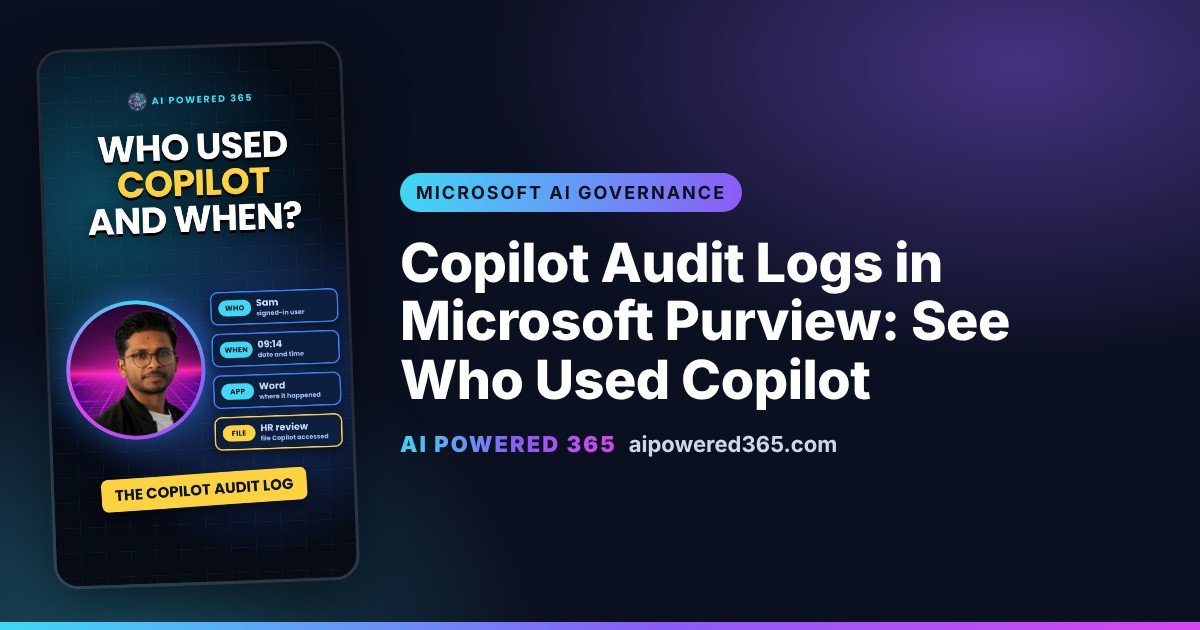
Copilot audit logs in Microsoft Purview show who used Copilot, when, in which app, and which files or sites Copilot accessed to answer. They are part of Purview Audit, so if auditing is on in your organisation, you can audit Copilot interactions without any extra setup. They record the interaction, not the chat text itself.
Why audit Copilot interactions?
Copilot reads files, sites and other resources to answer people’s questions. Imagine Copilot refers to a confidential HR file in an answer. How would your security team investigate? Without a record, nobody can start. With Copilot audit logs, compliance and security teams have evidence to work from.
An everyday way to think about it
Think of a visitor book at reception. It records who visited, when and which rooms, but not every word spoken. Copilot audit logs work the same way for AI: they record the interaction, not the conversation.
What does a Copilot audit record show?
- Who and when: which user interacted with Copilot, Cowork or an AI app, and when it happened.
- Where: the app it happened in, such as Word, Excel, Teams or Copilot Chat.
- What Copilot used: references to the files, sites or other resources Copilot accessed to answer, including their sensitivity label, so you can see whether Copilot touched sensitive information.
- Not the chat text: the record marks prompt and response messages by ID, but the text itself is not in the audit record.
- Admin changes too: admin activities such as changes to Copilot settings are also logged.
Microsoft 365 Copilot and other Microsoft Copilots log as CopilotInteraction. Custom or registered AI apps log as ConnectedAIAppInteraction, and other third-party AI apps as AIAppInteraction. Microsoft apps, including Microsoft 365 Copilot, Security Copilot, Copilot in Fabric and apps built with Copilot Studio and Microsoft Foundry, are included in Audit (Standard).
How to search Copilot audit logs
- Make sure you have the Audit Logs or View-Only Audit Logs role in the Microsoft Purview portal.
- Sign in to the Microsoft Purview portal and select the Audit solution.
- On the Search page, set the date and time range (up to 180 days).
- In Activities, friendly names, choose Interacted with Copilot, or type CopilotInteraction exactly in Activities, operations names. You can also filter by users or record type.
- Select Search, open the results, and select Export to download a CSV file.
What to watch out for
- Accessed is not read. If Copilot accessed a confidential file to build an answer, that does not prove the person opened or read the file. Treat audit records as evidence to investigate, not proof on their own.
- Retention. Audit (Standard) keeps records for 180 days. Longer retention needs Audit (Premium) retention policies, up to one year, or up to 10 years with an add-on licence. Premium does not extend every record automatically.
- Non-Microsoft AI apps. Audit logs for non-Microsoft AI apps use pay-as-you-go billing, are not included in your enterprise subscription, and must be turned on first.
- The full conversation. Prompts and responses are stored in the user’s mailbox. To find and review them, use eDiscovery with the Copilot activity condition, subject to your retention settings and eDiscovery permissions. Use retention policies for Microsoft Copilot experiences to keep or delete them.
- Not instant. Microsoft does not guarantee how quickly a record appears in search, so allow some time before you look.
Status
The Microsoft Learn pages for Copilot audit logs and audit search carry no preview label, and say Audit (Standard) is enabled by default. The Copilot Studio release plan lists auditing of user interactions with agents as generally available since 10 January 2025.
Related guides
- Purview DLP for Copilot prompts (preview): block sensitive data
- Restricted Content Discovery: hide a SharePoint site from Copilot
- How to block an AI agent in the Microsoft 365 admin center
- Defender for AI Services: catch attacks on your AI apps
- Watch this guide as a YouTube Short
- Microsoft AI Governance playlist on YouTube
Share this content:







Post Comment